Shared photo album between iPhone and Android: what actually works
Updated 14 November 2026
Two options work well for a mixed group: an iCloud Shared Album made on iOS 27, which Android friends can now open and add to in a web browser, and Google Photos, which runs on both kinds of phone. Which one suits you depends on how many people are coming, who should be able to add photos and whose storage pays.
Why this used to be hard
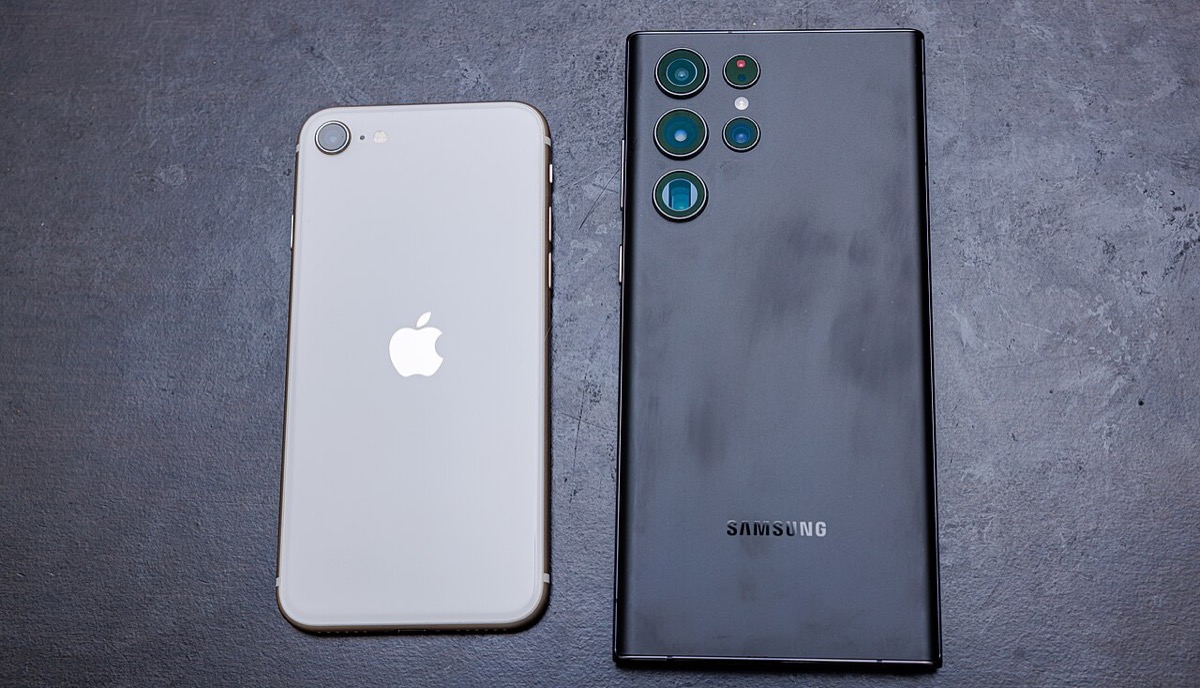
For years, Android friends could only look at an iCloud Shared Album through a public web page, so mixed groups fell back on Google Photos or a group chat. iOS 27 changed that, and plenty of older advice online hasn't caught up. Here is what works now, option by option: who can view, who can add, quality, limits and accounts.
iCloud Shared Albums on iOS 27
Apple says friends and family can now "join and contribute their own photos on the web, even without an Apple Account or Apple device". The owner makes the album in Photos on an iPhone (here is how to make a shared album on iPhone) and shares it by link. Android friends open the link in their browser.
- Who can view: people you invite and approve, or anyone with the link if you choose that. With access requests on, people who open the link ask to join and you approve them.
- Who can add: you always can. Everyone else needs the Can Add Photos permission. If you let anyone with the link in, one walkthrough notes they can view and add straight away, and pass the link on.
- Account: none needed on the web. Another walkthrough has Android contributors tap Add Photos, type an email address and then a six-digit code sent to it.
- Quality: full resolution for albums made on iOS 27.
- Limits: up to 100 people, including you. No cap on photos beyond your storage.
- Storage: everything in the album counts toward the owner's iCloud storage, including what guests add. Every iCloud account starts with 5 GB.
A temporary album avoids the storage problem: it doesn't count toward your iCloud storage and holds up to 5,000 photos and videos from everyone, but Apple deletes it after 30 days, so save what you want before then.
Two catches for mixed groups. First, iPhone guests matter too: Apple says participants whose devices aren't on the latest software have to update or view the album on iCloud.com. Second, an album made on iOS 26 or earlier works the old way unless you upgrade it. Its Public Website setting lets anyone see the photos in a browser, but not add to them, and photos are reduced to 2,048 pixels on the long edge.
Google Photos shared albums
Google Photos is an app on both iPhone and Android, which is why mixed families have used it for years. Make an album, tap Share, and send it to people or create a link. Google can also make a QR code for the album.
- Who can view: anyone with the link. Google says that if a contact doesn't have a Google Account, you can send them a link.
- Who can add: Google says anyone with the link can view and add. To stop that, turn off Collaborate in the album's options. People who didn't create the album can only add; they can't edit or remove other people's photos.
- Account: sharing directly needs a Google Account. Google's help doesn't spell out whether adding through a link works without signing in, so test it on a phone that isn't signed in before you rely on it.
- Quality: Google doesn't publish a separate rule for shared albums. Its backup settings are Original quality, or Storage saver, which shrinks photos over 16 MP and video over 1080p.
- Limits: up to 20,000 photos or videos in an album.
- Storage: each Google Account includes up to 15 GB, shared with Gmail and Drive. Photos you save from someone else's album count toward your own.
Anyone with the link can pass it on. The owner can reset the link, and removing a person also removes the photos and comments they added. Planning one for a wedding? Here's a Google Photos shared album for a wedding, step by step.
Other options that work on any phone
A group chat
WhatsApp or a group text needs no setup, and everyone is already in it. The trade-offs are quality and order: photos end up scattered between messages, and WhatsApp compresses them, even with its HD option. For full quality in WhatsApp, send photos as a Document instead.
A Dropbox file request
A file request is a link that lets anyone upload files to your Dropbox, with or without a Dropbox account. The folder it fills is private to you by default, so it isn't a place for everyone to browse. It's good for collecting full-quality originals after an event, not for everyone browsing together. Everything uploaded takes up your Dropbox space, and a Dropbox Basic account has 2 GB.
At a glance
| Android can add? | Account to add | Watch out for | |
|---|---|---|---|
| iCloud, iOS 27 album | Yes, in a browser | None | 100 people; your iCloud storage |
| iCloud, older album | No, view only | — | Photos cut to 2,048 px |
| Google Photos | Yes | Unclear; test first | 20,000 per album |
| Group chat | Yes | The chat app | Lower quality |
| Dropbox file request | Upload only | None | Your Dropbox space |
Which one to pick
- Up to 100 people, and you're on iOS 27: an iCloud Shared Album. Make it temporary if your storage is tight, and save the photos within 30 days.
- A mixed family that shares all year: Google Photos. Everyone gets the same app, and the album lasts.
- Full-quality originals after the event: a file request. Nobody browses, but nothing gets compressed.
- Quick snaps only: the group chat you already have.
- A trip with friends: one album made before you leave, and a habit of adding the day's best each evening. Here's how to run a shared album for a group trip.
- A few photos to people in the same room: AirDrop, which recent Pixel phones can now receive too. Here is how to AirDrop photos to a group of people.
Want to try it? SEENCAM gives your guests one QR code. They shoot from their own phones with no app to download, and every photo develops together when the roll opens. Free for up to 10 guests.
Get SEENCAM on the App StoreTips for a mixed group
- Test the link from the other side. Open it on an Android phone, or one that isn't signed in, and try adding a photo before you send it to everyone.
- Count heads. An iCloud album stops at 100 people. Bigger weddings need another plan.
- Decide whose storage pays. On iOS 27, a permanent album fills the owner's iCloud. Check there is room before the day.
- Use access requests if the link will be printed or posted, so a forwarded link doesn't let strangers in.
- Send it the day before, saying it works on any phone.
A message you can copy:
Here's the album for Saturday! It works on iPhone and Android: tap the link, then add your photos as you go.
How SEENCAM handles mixed phones
Every album above has the same weak spot: guests have to remember to add their photos, and at an event plenty never do.
SEENCAM works the other way round. The host starts a roll in the iPhone app and shares one QR code or link. Guests scan it and shoot straight into the roll from their own phones: on iPhone the camera opens as an App Clip, and on Android and other phones it opens in the browser. There is no app to download and no account to make, so an Android guest joins the same way as everyone else. If an iPhone guest's camera won't read the code, here's what to do when an iPhone isn't scanning a QR code; the link works just as well.
Because each photo lands in the roll as it's taken, nothing depends on uploading later. The host chooses when the photos appear (during the event, when it ends, or 12 or 24 hours later) and whether each guest sees every photo or only the ones they're in. Every roll is free for up to 10 guests. Bigger rolls, up to unlimited guests, are a one-time purchase for that roll, and guests never pay. There's more in how to collect wedding photos from your guests.
The two fit together: a shared album for photos people already have, and a roll for the night itself.
Sources
- How to use Shared Albums in Photos on your iPhone, iPad, or Apple Vision Pro, Apple Support
- Shared Albums limits, Apple Support
- Manage your iCloud storage, Apple Support
- iOS 27 Lets Other People Use Your iCloud Storage, MacRumors
- How to Share iPhone Albums with an iPhone or Android User, iPhone Life
- iOS 27 makes it easier to share iPhone albums with Android, iGeeksBlog
- Share photos & videos, Google Photos Help
- How shared album controls give your photos more privacy, Google Photos Help
- Create & edit photo albums, Google Photos Help
- Choose the backup quality of your photos & videos, Google Photos Help
- How your Google storage works, Google One Help
- WhatsApp Now Lets You Send Photos and Video in Original Quality, MacRumors
- Collect files easily with file requests, Dropbox Help
- What is Dropbox Basic?, Dropbox Help
Related guides
One camera for every phone
Start a roll on your iPhone and share one QR code. Guests on iPhone or Android shoot into the same roll, with no app to download. Free for up to 10 guests.
Get SEENCAM on the App Store