Google Photos shared album for a wedding: setup, guests and limits
Updated 17 November 2026
Make an album in Google Photos, share it by link or QR code, and leave Collaborate on so guests can add their own photos. Anyone with the link can look in a browser, but plan on guests needing the Google Photos app and a Google Account to add, and on one or two uncles who never quite get there.
Why couples reach for Google Photos
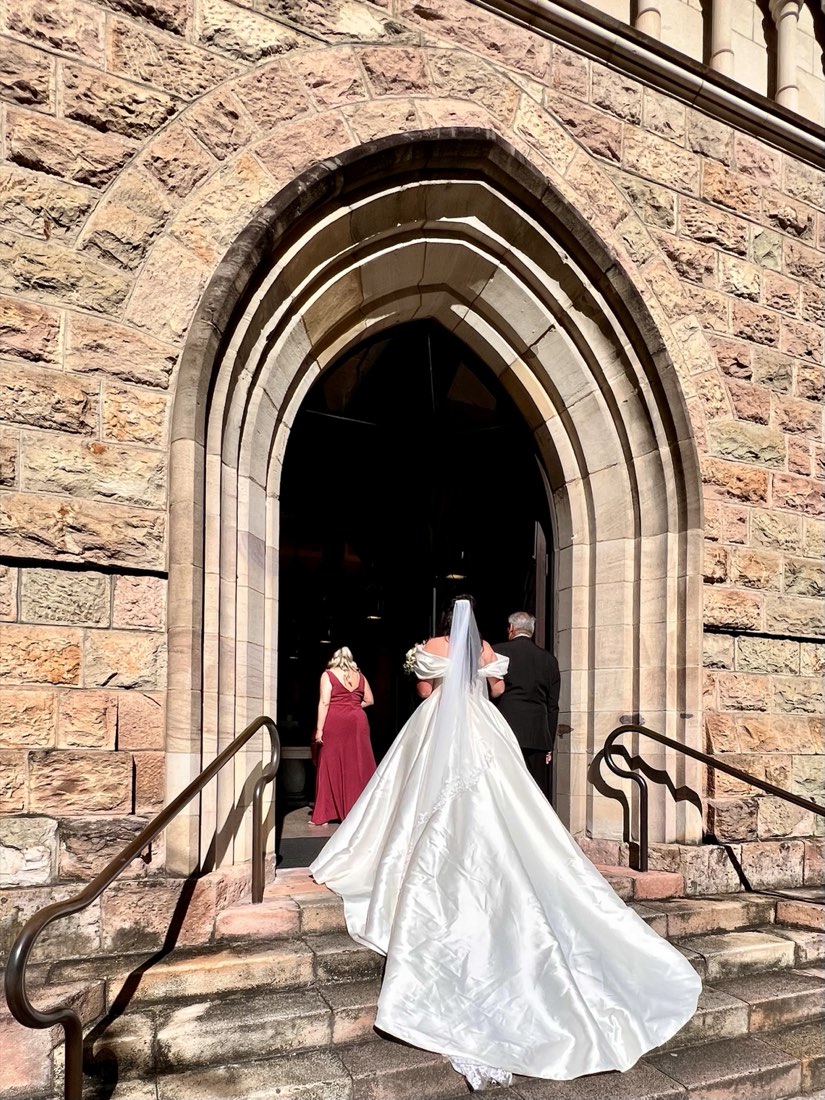
It runs on iPhone and Android, the app costs nothing to install, and anyone who uses Gmail already has the Google Account it needs. One link or QR code can collect photos from everyone, and an album holds far more than a wedding will ever produce.
Setup takes five minutes. What needs more thought is what guests need on their side, and who can see and add once the link is out.
How to set one up
On your phone, in the Google Photos app:
- Pick a photo or two to start the album with: an engagement shot or the venue. Touch and hold to select them, then tap Create (or Add) and Album.
- Give it a name guests will recognise, like Maya & Sam's Wedding, and tap Done.
- Tap Share and create a link (on iPhone it's Get link). In the album's Options, check that Collaborate is on, so guests can add photos and not just look.
- For a sign on the tables, the app can also make a QR code for the album (on iPhone: Share, then Show QR Code). Google suggests taking a screenshot of it to print.
You can do the same on a computer at photos.google.com: select a photo, choose to add it to a new shared album, give it a title and click Share. The wedding QR code sign maker turns any album link into a printable sign.
What guests need
- To look: just the link. Google says anyone with it can view the album, and it opens in a browser even for people who don't use the Google Photos app.
- To add photos: plan on the Google Photos app and a Google Account. Google's help puts your profile name on every photo you add, and early reports from Google's launch of shared albums said only account holders could add. Google's current pages don't say outright whether adding works without signing in, so try the link on a phone that isn't signed in before the day.
- To add on a computer: guests can open the album at photos.google.com, signed in, and add from there.
How iPhone guests fare
iPhone guests can view the album in Safari, but the way Google describes adding from a phone is the Google Photos app, which on the App Store requires iOS 18 or later (checked November 2026). After installing it, they sign in with a Google Account, let the app see their photos, and pick what to add.
The files are no problem: Google Photos takes iPhone HEIC photos and MOV videos. The friction is the extra app and account. A guest whose iPhone is too old for the app can still look in Safari, or add from a computer instead.
If most guests have iPhones, an iCloud album avoids that: here's how to make a shared album on iPhone. For a mixed crowd, compare both in shared photo albums between iPhone and Android.
The limits
From Google's own help pages, checked in November 2026:
- 20,000 photos or videos per album. A wedding won't come close.
- Each file: photos up to 200 MB or 200 megapixels, videos up to 10 GB.
- People: Google doesn't publish a limit.
- Storage: each Google Account includes up to 15 GB, shared with Gmail and Drive. Accounts made since March 9, 2026 start with 5 GB and get 10 GB more after verifying a phone number. Saving the album's photos to your own library counts toward your storage.
Who can see and add
With link sharing on, the album is as private as the link:
- Anyone with the link can view the photos and add to the album, and anyone with access can add other people.
- The link can be forwarded. If it ends up somewhere it shouldn't, turn link sharing off and on again: the old link stops working, and you send the new one.
- Only the owner can change the link settings. Turn off Collaborate to stop people adding, and choose whether others can leave comments and likes.
- Removing a person also removes their photos and comments, but while link sharing is on, anyone with the original link can still look.
- Guests' profile names appear on the photos they add, so everyone can see who shared what.
If you'd rather some photos stayed off social media, private wedding photo sharing compares this with a hashtag, a group chat and an app.
Where it falls short for a wedding
- Photos arrive only when guests upload them. Everyone shoots in their own camera app and has to remember to add the photos later. Many never do.
- Guests who leave take their photos with them. Google says that when someone leaves a shared album, the photos, videos, comments and likes they added are removed. Save what you want to your own library early.
- Everything shows straight away. Photos appear for everyone as soon as they're added, so guests may be scrolling the album during the speeches.
- It's only as private as the link. A QR code on every table is easy to photograph and pass on.
Want to try it? SEENCAM gives your guests one QR code. They shoot from their own phones with no app to download, and every photo develops together when the roll opens. Free for up to 10 guests.
Get SEENCAM on the App StoreMaking it work on the day
- Test it first from an iPhone and from a phone that isn't signed in, so you know exactly what guests will see.
- Send the link the day before, so guests can install the app and sign in at home rather than at the reception.
- Ask a friend to help relatives through the sign-in, the step where guests most often give up.
- Remind people the next morning, while the night is fresh. If the week has already gone by, here's how to ask for photos after the wedding.
- Save the album to your own library within a week or two, so a guest leaving doesn't take photos with them.
A message you can copy:
Here's our wedding album! Tap the link and add your photos and videos with the Google Photos app (you'll need to sign in with a Google Account). Blurry, silly and candid are all welcome.
Where SEENCAM fits
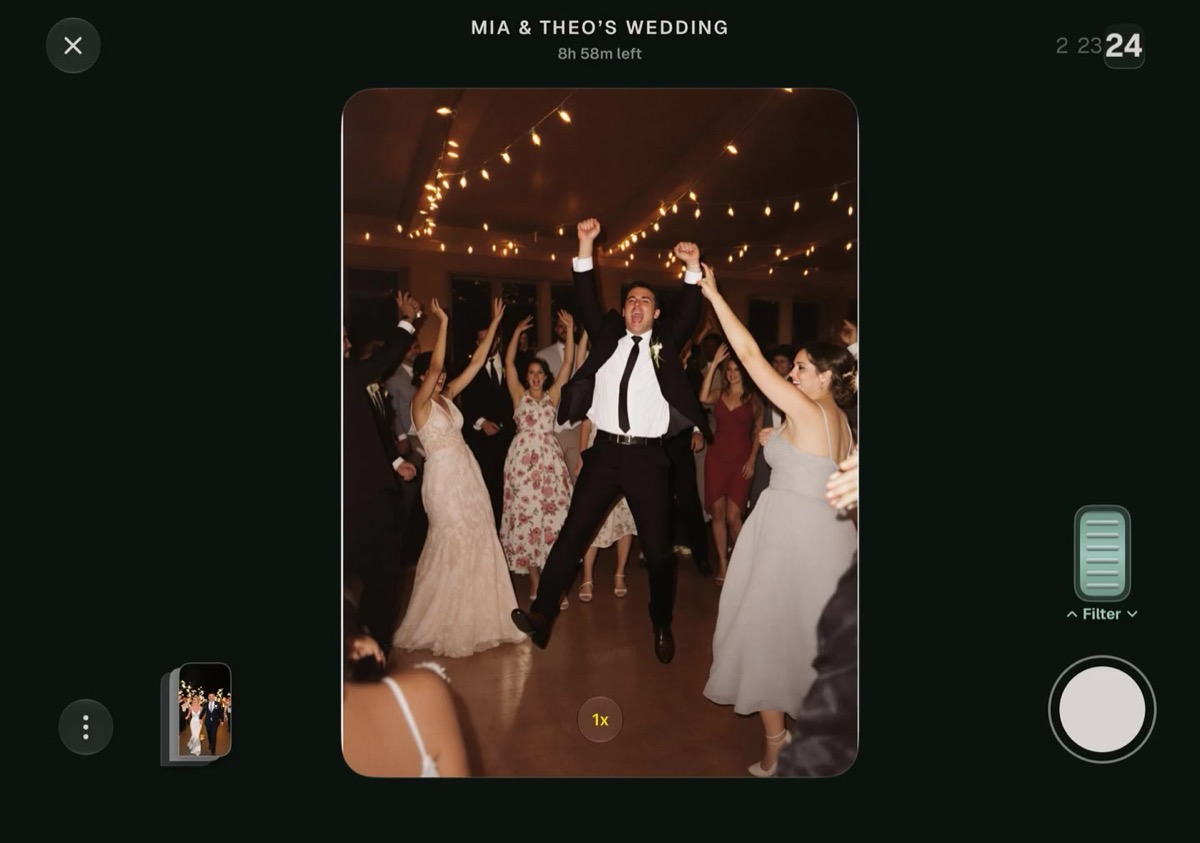
A shared album collects photos people already took. SEENCAM collects them while they're being taken. You start a roll in the iPhone app and share one QR code or link. Guests scan it and shoot straight into the roll from their own phones: on iPhone the camera opens as an App Clip, and on Android and other phones it opens in the browser. There's no app to download and no account to make, so the guests who'd stall at a sign-in screen shoot the same way as everyone else.
Nothing depends on uploading later, and photos stay hidden until the time you choose: during the event, when it ends, or 12 or 24 hours later. Rolls are invite-only, and you decide whether each guest sees every photo or only the ones they're in. Every roll is free for up to 10 guests. Bigger rolls, up to unlimited guests, are a one-time purchase for that roll, and guests never pay.
The two work well together: a Google Photos album for photos people already have, like the rehearsal dinner, and a roll for the wedding night.
Sources
- Share photos & videos, Google Photos Help
- How shared album controls give your photos more privacy, Google Photos Help
- Create & edit photo albums, Google Photos Help
- Photo & video file types & sizes, Google Photos Help
- How your Google storage works, Google One Help
- Google Photos, App Store
Related guides
No sign-in for your guests
Start a roll on your iPhone and share one QR code. Guests on any phone shoot straight into it, with no app to download and no account. Free for up to 10 guests.
Get SEENCAM on the App Store