How to AirDrop photos to a group of people (and to Android phones)
Updated 18 November 2026
Select the photos, tap Share, tap AirDrop and choose the people you want to send to. Each person taps Accept on their own phone. Anyone who doesn't have you in their contacts needs to switch AirDrop to Everyone for 10 Minutes first, and recent Pixel phones can now receive too, through Quick Share.
Before you start
AirDrop sends photos straight from your iPhone to phones near you. It's the quickest way to hand a few pictures round a table, as long as everyone is set up for it. Apple's checklist:
- Wi-Fi and Bluetooth are on on every phone.
- Everyone is close. Apple says within 30 feet (10 meters).
- Personal Hotspot is off on both phones.
- No VPN in the way. A VPN whose settings block local networking can stop AirDrop working.
How to AirDrop photos to several people
- Open Photos, tap Select, and tap each photo you want to send.
- Tap the Share button, then AirDrop.
- People nearby appear in the list. Tap the people you want to send to; you can choose more than one.
- Each person taps Accept on their own phone, and the photos are saved in their Photos app.
Every recipient accepts on their own. Apple's security guide says that when several people are selected, the accept step happens for each one. If someone misses the prompt, send to them again.
For one friend who is in your contacts there's a shortcut: on iOS 17 or later, open the photo and hold your iPhone close to theirs.
Contacts Only, Everyone for 10 Minutes and AirDrop codes
Whether you show up in someone's list depends on their setting, not yours. They choose it in Control Center: touch and hold the group of controls at the top left, tap AirDrop, and pick one.
- Contacts Only is the default. You only appear if you're in their contacts and the card they have for you includes your Apple Account email address or phone number. If they saved you under a different number, you won't show up.
- Everyone for 10 Minutes lets anyone nearby send to them. Since iOS 16.2 it switches back after 10 minutes: to Contacts Only if they're signed in to an Apple Account, or to Receiving Off if they aren't.
When both phones are on iOS 26.2 or later, there's one more step for people who aren't in your contacts. When you tap their name, they tap Get AirDrop Code and read the code to you, and you type it in. After that you can AirDrop each other for 30 days without a new code. They're kept in an Other Known list in Contacts, and you can remove them from it sooner.
For a group that isn't in each other's contacts, ask everyone to switch to Everyone for 10 Minutes at the same moment, then send straight away, before the time runs out. You'll swap a code with each new person, so it goes fastest with a small group.
Why some people don't show up
- Their 10 minutes ran out. Ask them to switch back to Everyone for 10 Minutes.
- They're on Contacts Only and don't have your Apple Account email or number on your card.
- Wi-Fi or Bluetooth is off, or Personal Hotspot is on.
- They're too far away. Bring them within 30 feet.
- Their phone is asleep. Apple's security guide describes nearby devices responding when they're awake, so ask them to wake their phone.
- Still nothing? Restart both phones and try again. That's Apple's own last step.
Can Android phones get AirDrop photos now?
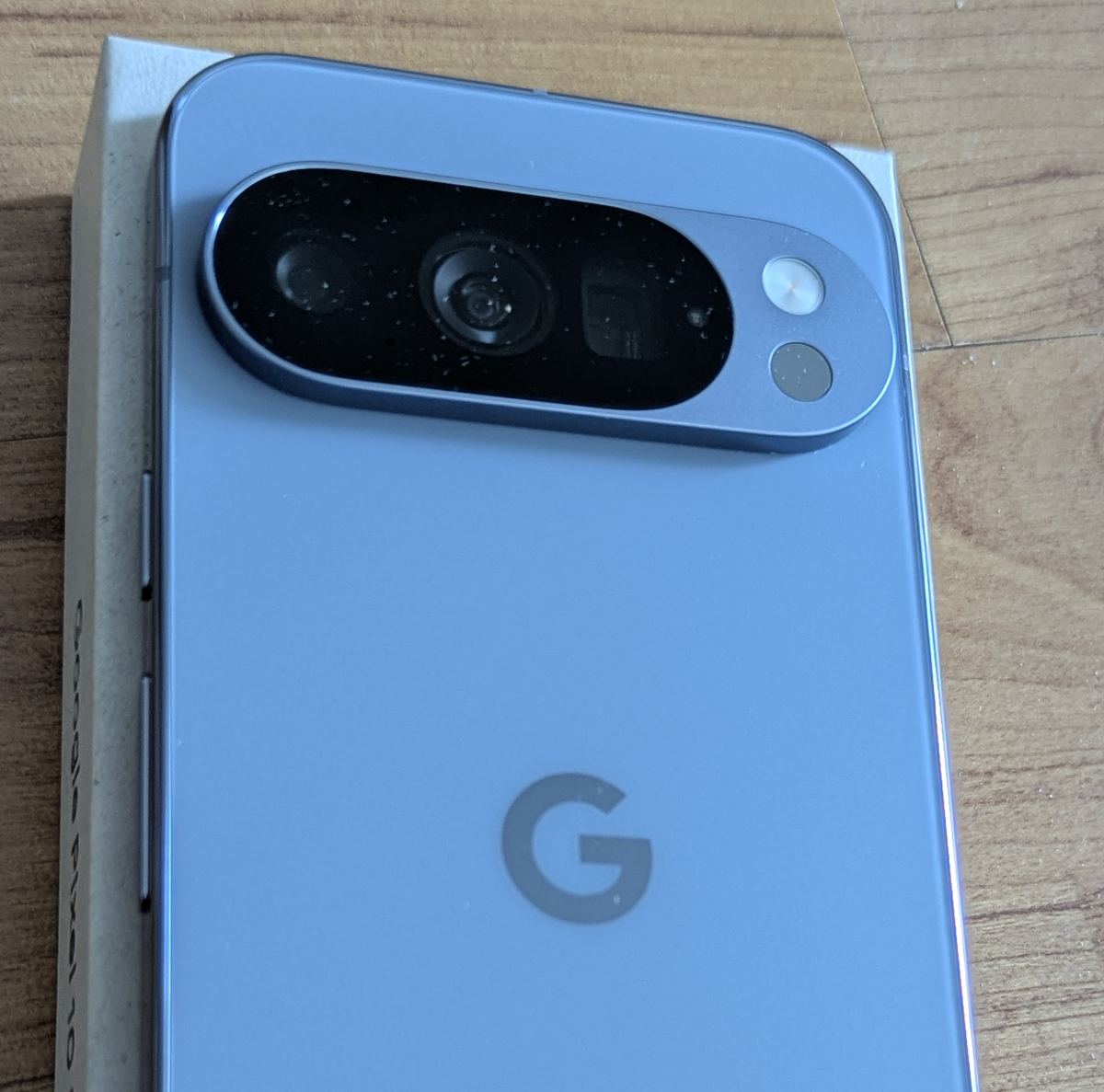
Some can, so older advice saying Android can't receive AirDrop is out of date. Google's Quick Share now works with AirDrop on a list of recent Android phones.
- Which phones can receive from an iPhone: Google's help page lists the Pixel 9 and later, except the Pixel 9a.
- What the Android guest does: open Settings, search for Quick Share, tap Who can share with you and choose Everyone for 10 minutes. Keeping the Quick Share page open in Receive mode works too. Like AirDrop's setting, it switches back after 10 minutes.
- What you do: send from AirDrop as usual, and they tap Accept.
Google's page doesn't name any other phone for receiving from an iPhone. If an Android guest has a different model, test it before the day: send one photo and see whether it arrives. If it doesn't, send a link instead. Here's what works for a shared album between iPhone and Android.
Sending photos from Android to an iPhone
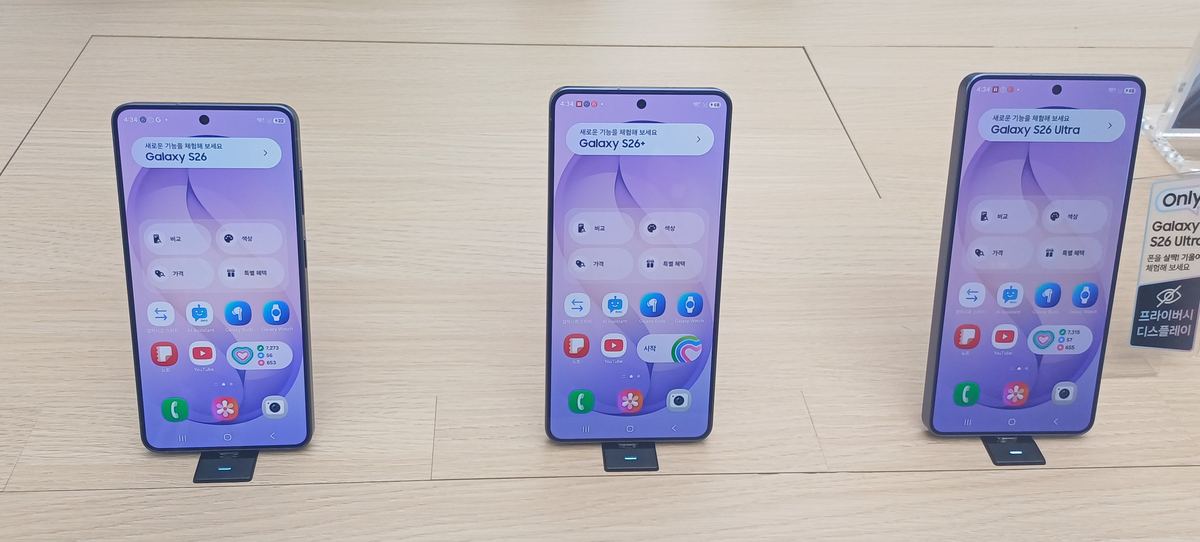
The other direction matters too: Android guests who want to share their photos with the iPhones in the group.
- Phones with AirDrop support in Quick Share. Google lists the Pixel 8a and later, and certain Samsung, Oppo, OnePlus, Vivo, Xiaomi, Honor, Transsion and Motorola phones. The iPhone owner switches AirDrop to Everyone for 10 Minutes. The Android guest opens the photos, taps Share, then Quick Share, and picks the iPhone. The iPhone owner taps Accept.
- Phones without it can still send to iPhones with a QR code: on the Quick Share page, tap Use QR code, and the iPhone scans it and downloads the files in its browser. Google says both phones need internet, the files stay available for 24 hours, and one share can go to up to 20 iPhones, iPads or Macs at a time.
- Between Android phones, Quick Share lets you tap more than one device. On some models the transfers queue and go one after another.
Samsung started adding AirDrop support to Quick Share on the Galaxy S26, S26+ and S26 Ultra on March 23, 2026, with timing that varied by country, and said more models would be announced later.
Want to try it? SEENCAM gives your guests one QR code. They shoot from their own phones with no app to download, and every photo develops together when the roll opens. Free for up to 10 guests.
Get SEENCAM on the App StoreWhen AirDrop isn't the right tool
Apple says AirDrop is best for sharing a small selection of files. It's great for a handful of photos to the people standing next to you. It gets harder when:
- The batch is big. Two hundred photos to ten people means ten transfers, and each one needs its own Accept.
- People have gone home. AirDrop needs everyone nearby to start. On current iOS, if someone walks out of range after a transfer has begun, it carries on over the internet, which can use mobile data.
- The room is mixed. Android phones that aren't on Google's list may not receive AirDrop at all.
For those, a shared album fits better: one link, and everyone adds and saves photos in their own time. Here's how to make a shared album on iPhone, and how to ask for photos after the event.
A message to send before you AirDrop
Paste this into the group chat a minute before you start sending:
Sending tonight's photos by AirDrop now! iPhone: open Control Center, press and hold the top-left controls, tap AirDrop and choose Everyone for 10 Minutes. Pixel 9 or newer: open Settings, search Quick Share, tap Who can share with you and choose Everyone for 10 minutes. Then tap Accept when they arrive.
Send in small batches, so nobody sits watching a progress bar, and check who still needs them before people leave.
Skip the sending: one roll for everyone
AirDrop moves photos that already exist. If the party is still ahead of you, a shared camera means nobody has to send anything afterwards.
With SEENCAM, the host starts a roll in the iPhone app and shares one QR code or link. Guests scan it and shoot straight into the roll from their own phones, with no app to download and no account: the camera opens as an App Clip on iPhone and in the browser on Android and other phones. There's no list of which Android phones work, and nobody needs to be within 30 feet of anyone.
Each photo lands in the roll as it's taken. The host chooses when the photos appear (during the event, when it ends, or 12 or 24 hours later) and whether each guest sees every photo or only the ones they're in, and you can save your favourites or the whole roll.
One thing a roll doesn't do: guests can't add photos already in their camera roll. For those, AirDrop or a shared album is still the way. Every roll is free for up to 10 guests; bigger rolls are a one-time purchase for that roll, and guests never pay. There's more in how to collect wedding photos from your guests.
Sources
- How to use AirDrop on iPhone and iPad, Apple Support
- Use AirDrop to send items to nearby Apple devices, iPhone User Guide, Apple Support
- AirDrop security, Apple Platform Security
- Use Quick Share on your Android device, Pixel Phone Help
- Samsung Brings AirDrop Support to Quick Share with Galaxy S26 Series, Samsung Mobile Press
Related guides
Nothing to send afterwards
Start a roll on your iPhone and share one QR code. Guests on iPhone or Android shoot into the same roll, with no app to download. Free for up to 10 guests.
Get SEENCAM on the App Store