iPhone camera not scanning a QR code? How to fix it
Updated 19 November 2026
Open Camera in Photo mode, hold the whole code inside the frame with some white space around it, and tap the link that appears at the bottom of the screen. If nothing shows up, try the Scan Code control in Control Center, add light, wipe the lens, and check whether the code itself is damaged or covered by a design.
Fix it fast: symptom, cause, fix
Most "my iPhone won't scan it" moments come down to one of a handful of things. Find the line that matches what you see.
| What you see | Likely cause | Try this |
|---|---|---|
| Nothing at all happens in Camera | Not in Photo mode, or scanning is switched off | Swipe to Photo; check Settings > Camera (below) |
| Camera won't open, or the app is missing | Camera blocked in Screen Time | Screen Time > Content & Privacy Restrictions > Other Features |
| The image hunts for focus and never settles | Too close, too dark or a smudged lens | Step back, add light, wipe the lens |
| Other phones scan it, yours doesn't | Your Camera setup or lens | Use the Scan Code control instead |
| Nobody's phone scans it | The code: damaged, no white border, a design over it, glare | Ask for the link, or reprint the code |
| A link appears but nothing opens | You haven't tapped it, or the page or App Clip didn't load | Tap the link at the bottom, then Open on the card |
Scan from the right place
Apple's iPhone User Guide gives three ways to scan, and it's worth knowing all of them, because when one fails another often works.
- The Camera app, in Photo mode. Open Camera, make sure Photo is selected (not Portrait, Video or Pano), and frame the code so all of it is on screen. A link appears at the bottom of the screen. You have to tap that link; scanning alone doesn't open anything.
- The Scan Code control in Control Center. Swipe down from the top-right corner (on iPhone SE, swipe up from the bottom). If it isn't there, tap the button at the top to edit, then Add a Control and choose Scan Code. Older guides call it Code Scanner. It's a dedicated scanner with its own flashlight button, so it's the best thing to try when Camera won't react.
- The Camera Control, on the iPhone models that have one, can also scan QR codes.
Settings that can switch scanning off
- Scan QR Codes. On earlier versions of iOS there's a switch under Settings > Camera called Scan QR Codes, and walkthroughs from iPhone Life and Guiding Tech name it as the most common cause. Apple's iOS 27 guide doesn't list it, so if you don't see it, skip this step and use Scan Code instead.
- Screen Time. On a child's phone, a work phone, or one where someone set up restrictions, the Camera may be blocked. Apple puts it under Settings > Screen Time > Content & Privacy Restrictions > Other Features. If you don't know the Screen Time passcode, ask whoever set it up.
- Restart Camera. Swipe the Camera app away and open it again before trying anything harder.
Light, distance and the lens
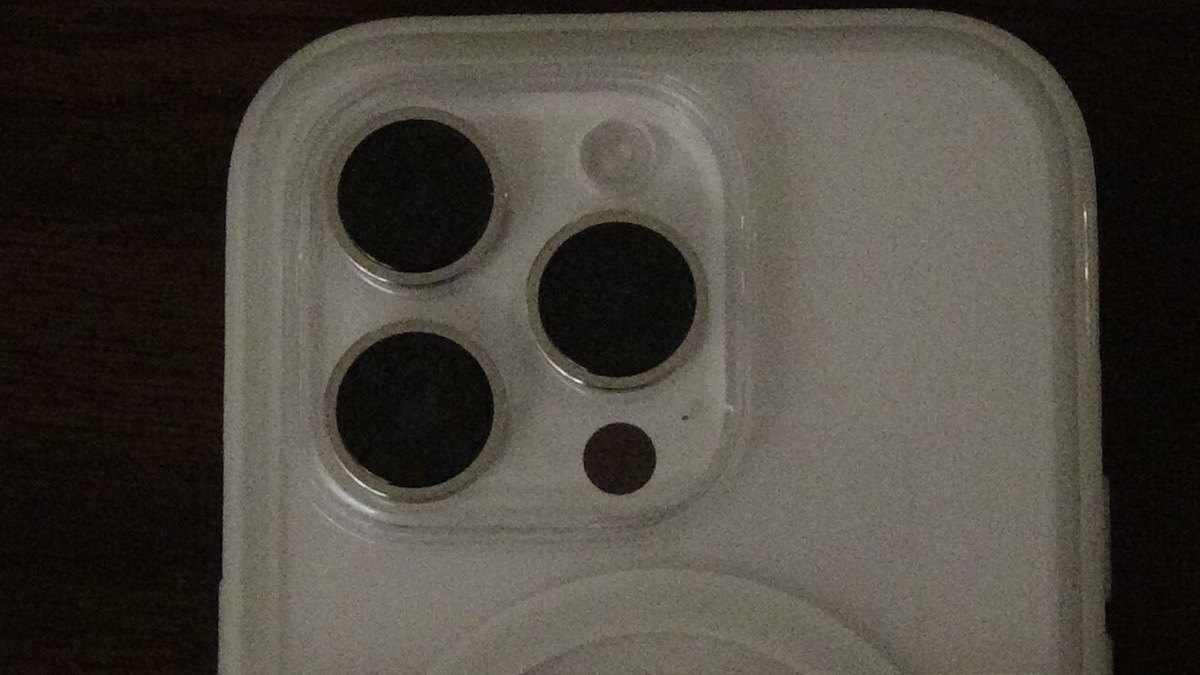
A QR code is a grid of tiny squares, and the camera has to see the edges of every one. Three things get in the way.
- Light. Candlelit tables and dim venues are the classic failure. Use the flashlight button in the Scan Code control, or ask someone to shine their phone's light from the side.
- Glare. Laminated signs, glass frames and phone screens reflect light straight back. Tilt your phone a little until the shine slides off the code. QR codes are built to cope with being read at an angle, so a slight tilt costs nothing.
- Distance. Too close and the camera can't focus; too far and the squares blur together. Start at arm's length, move slowly closer, and give it a second.
- The lens. A fingerprint on the lens softens everything just enough to stop a scan. Wipe it with a soft cloth, and check that your case isn't creeping over the lens. On supported models, iPhone even tells you when the lens looks smudged.
When the code itself is the problem
If two or three different phones can't read it, stop fiddling with yours. The code is the problem.
- No white border. DENSO WAVE, which invented the QR Code, says a code needs a clear margin around it, four of its small squares wide on every side. A code printed right up against a photo, a frame or the edge of a card often won't read.
- A design over it. Logos in the middle, rounded dots and clever colours look nice, but DENSO WAVE warns that deforming a code with an illustration or design can make even a tiny missing part stop it reading.
- Damage. Codes have built-in error correction: depending on how they were made, they can survive roughly 7% to 30% of the code being dirty or damaged. A fold, a wine stain or a torn corner can use all of that up.
- A sticker on top. If a code looks stuck over another one, as on a parking meter, be careful. The FTC has warned that scammers cover real codes with their own.
The fix for a bad code is usually not on your phone at all: ask for the link itself. Whoever made the code has it.
When the camera sees it but nothing opens
- Tap the link. The yellow link at the bottom of the screen is the whole point; the camera never opens it on its own.
- An App Clip card appeared? Some codes open a small part of an app instead of a website. Tap Open (or Play) on the card. Here's what an App Clip is and why a code opened one, and what to do when an App Clip won't open.
- Check the address before you go. The FTC's advice: many readers preview the link, so look for misspellings or swapped letters before tapping, especially on codes in public places.
- Nothing loads. A code is only a link. If the page doesn't load, check your connection or the venue's Wi-Fi, then try again.
Want to try it? SEENCAM gives your guests one QR code. They shoot from their own phones with no app to download, and every photo develops together when the roll opens. Free for up to 10 guests.
Get SEENCAM on the App StorePrinting a code your guests can scan

If you're the one putting a code on the tables, a few minutes now saves a queue of guests squinting at a card later.
- Make it big enough. A code needs to be about a tenth of the distance it's scanned from; here's what size a QR code should be on a sign.
- Leave the white border. Keep text and decoration well clear of the code.
- Keep it plain. Dark squares on a light background, no logo in the middle, no artistic dots.
- Choose matte. Matte paper and a frame without glass avoid the glare problem completely.
- Think about the light. Put signs where the light is good, not in the darkest corner of the room.
- Print the link too. A short link under the code rescues anyone whose phone won't cooperate.
- Test it on the day, in the room, on an iPhone and an Android phone, from where a seated guest would hold their phone.
How SEENCAM handles it
SEENCAM is a shared disposable camera for weddings and parties, and its whole start is one QR code. The host starts a roll in the iPhone app and shares one QR code or link. On an iPhone, scanning the code opens the camera as an App Clip; on Android and other phones it opens in the browser. Guests shoot straight into the roll with no app to download and no account.
Because the roll has a link as well as a code, you can send it to guests before the day, so anyone whose camera won't scan at the venue already has it. The free wedding QR code sign prints your names, your link and your choice of wording. Every roll is free for up to 10 guests. A bigger party is a one-time purchase for that roll, with no subscription, and guests never pay.
Sources
- Scan a QR code with your iPhone camera, Apple
- Use and customize Control Center on iPhone, Apple
- Block features or content with Screen Time on iPhone, Apple
- Point for determining the code area, DENSO WAVE
- Error correction feature, DENSO WAVE
- See a QR code parked somewhere? Don't scan it…yet!, Federal Trade Commission
Related guides
One code, everyone's photos
Start a roll on your iPhone, put the QR code on the tables and send the link too. Guests shoot from their own phones, with nothing to install. Free for up to 10 guests.
Get SEENCAM on the App Store