App Clip not opening from a QR code? How to fix it
Updated 24 November 2026
Most App Clips that won't open from a QR code come down to four things: the code was scanned outside the Camera app, the Open button on the card wasn't tapped, Screen Time has App Clips set to Blocked, or the connection is too weak to load it. Each takes under a minute to check.
What should happen when you scan
On an iPhone, Apple's instructions are short: scan the code with the Camera or the code scanner in Control Center, and "when the app clip appears on the screen, tap Open or Play." In practice that's three steps:
- Point the Camera at the code. A yellow link or banner appears at the bottom.
- Tap it. A card slides up with the app's name, a picture and an Open, View or Play button.
- Tap that button. The App Clip loads and opens.
If it stops at one of those steps, the table tells you where to look. If you're not sure what an App Clip is in the first place, here's what an App Clip is and why a QR code opened one.
| What you see | Likely cause | Fix |
|---|---|---|
| Nothing at all when you point the camera | The camera isn't reading the code | See why an iPhone camera isn't scanning a QR code |
| A web page opens instead of a card | You scanned with another app, or opened the link in another app's browser | Scan with the Camera, or open the link in Safari |
| The card appeared, then went away | The card was swiped down or the screen was tapped elsewhere | Scan again and tap Open on the card |
| The card shows, but the App Clip won't run, or a message mentions restrictions | Screen Time has App Clips set to Blocked | Whoever manages the phone sets App Clips to Allowed |
| The card opens but the App Clip spins or never loads | Weak signal or venue Wi-Fi that wants a sign-in | Switch to cellular or move, then try again |
| It opens an old or wrong screen | An earlier copy of the App Clip is still on the phone | Remove the App Clip and scan again |
Scan with the Camera, not a scanner app
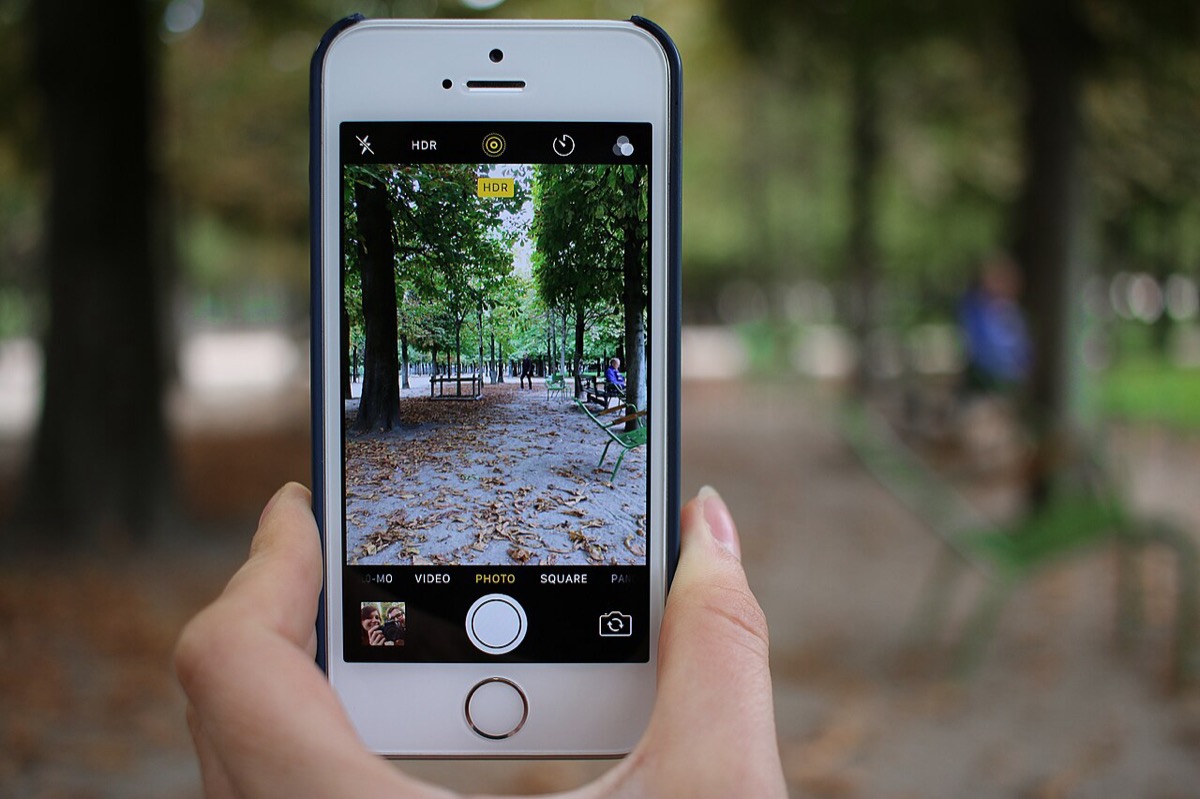
Apple lists two ways to open an App Clip from a QR code: the built-in Camera app and the code scanner in Control Center. A separate QR scanner app, or a code inside a photo or screenshot, is not one of them. If a scanner app showed you a web address or a web page, close it, open the Camera, stay in Photo mode and point it at the code again.
Tap Open on the card
The card that slides up is a question, not the App Clip itself. Swipe it away or tap above it and it disappears, and nothing loads. Scan again and tap the button at the bottom of the card: Open, View or Play, depending on the app. With a group at a table, it's often just this: the phone was passed around and someone tapped outside the card.
A link from another app may not open it
QR codes aren't the only way in. A host might also text or email the link. Apple's developer documentation lists the ways an App Clip can start, and some come with conditions:
- Messages: a link someone sends you opens the App Clip when it arrives as a text message.
- Safari: a banner or App Clip card on a web page opens it. The card in Safari needs iOS 15 or later.
- Other apps: a link inside another app (a chat app or a social app's own browser, say) can open an App Clip only on iOS 17 or later.
- Email or a website: tapping a link to an App Clip there can open it too.
If a link opened a plain web page inside another app, copy it and paste it into Safari, or ask the host to send it as an ordinary text. Scanning the printed code with the Camera is usually quickest.
Screen Time can block App Clips
App Clips have their own switch in Screen Time. On a child's iPhone, Apple's parental controls guide puts it here: on the parent's phone, open Settings, tap Family, tap the child's name, tap Apps & Websites, then App Store, and choose a setting like Installing Apps or App Clips. Each is either Allowed or Blocked.
If App Clips is set to Blocked, the App Clip won't run however well the code scans. Only the person who manages the phone can change it, so a teenager at a wedding needs to ask a parent. From iOS 26, Apple says a parent can let a child request an exception to a restriction instead of changing it for good.
A phone that a company or school manages can have its own restrictions too. If none of the fixes on this page help on a work phone, that's a likely reason; try a personal phone.
Signal, Wi-Fi and older iPhones
- It needs a connection. An App Clip isn't on your phone before you scan; it loads over the internet. Apple's design guidelines tell developers that a smaller App Clip launches faster, which is "especially important when bandwidth is limited". In a basement reception room or a crowded hall, step near a window or switch from venue Wi-Fi to cellular.
- Venue Wi-Fi with a sign-in page can stop the App Clip from loading until you've accepted the network's terms in its pop-up. Sign in to the Wi-Fi first, or turn Wi-Fi off.
- Very old iOS. App Clips arrived with iOS 14, and some ways of opening them need iOS 15 or 17, as above. If the phone hasn't been updated in years, update it, or use another phone for tonight.
- Restart. If everything else looks right, turning the phone off and on again clears a stuck camera or network.
Want to try it? SEENCAM gives your guests one QR code. They shoot from their own phones with no app to download, and every photo develops together when the roll opens. Free for up to 10 guests.
Get SEENCAM on the App StoreRemove an old copy and scan again
An App Clip you opened before can still be on the phone, and an old copy may open the wrong screen or a past event. To remove it, using Apple's iOS 27 steps:
- Swipe left past your last Home Screen page to open the App Library.
- Tap the search field and scroll to the bottom of the list, where App Clips are listed, or type the App Clip's name.
- Touch and hold the App Clip, then tap Remove App Clip.
Then scan the code again. If you already have the full app installed, it opens instead of the App Clip, which is normal.
If you're the host: test it before the day
- Scan your printed code on two or three phones a few days before: an iPhone, an Android phone and, if you can, a friend's older iPhone. Fix the sign while there's time.
- Print the code large enough, with a white border. Here's what size a QR code should be on a sign.
- Send the link as a text too. A guest who can't scan can tap a link in Messages.
- Mention it in your welcome. "Scan with your phone's camera and tap Open" saves most of the questions you'd otherwise get at the bar.
- Expect a few teenagers to need a parent. Children's phones with Screen Time may have App Clips blocked.
How SEENCAM guests join
SEENCAM is a shared disposable camera for weddings and parties, and it starts with one QR code. The host starts a roll in the iPhone app and shares the code or link. On an iPhone, scanning it opens the camera as an App Clip, so the fixes above apply; on Android and other phones it opens in the browser. Guests shoot straight into the roll with no app to download and no account.
The host chooses how many shots each guest gets, when shooting stops and when the photos appear: during the event, when it ends, or 12 or 24 hours later. Every roll is free for up to 10 guests. A bigger event is a one-time purchase for that roll, with no subscription, and guests never pay.
Sources
- Use App Clips on iPhone, Apple iPhone User Guide
- Set up parental controls to manage your child's iPhone or iPad, Apple Support
- Configuring App Clip experiences, Apple Developer Documentation
- App Clips, Apple Human Interface Guidelines
Related guides
Try the scan before your event
Start a SEENCAM roll on your iPhone and have a friend scan the code: on their iPhone the camera opens as an App Clip, on Android in the browser. Free for up to 10 guests.
Get SEENCAM on the App Store