Destination wedding photo sharing with guests from other countries
Updated 17 November 2026
Pick one place for photos that works on any phone and needs no app guests may not have at home, put the venue Wi-Fi on the same sign, and collect photos before everyone flies home. Here is what trips up guests from abroad, and how to plan around each one.
Why destination weddings lose more photos
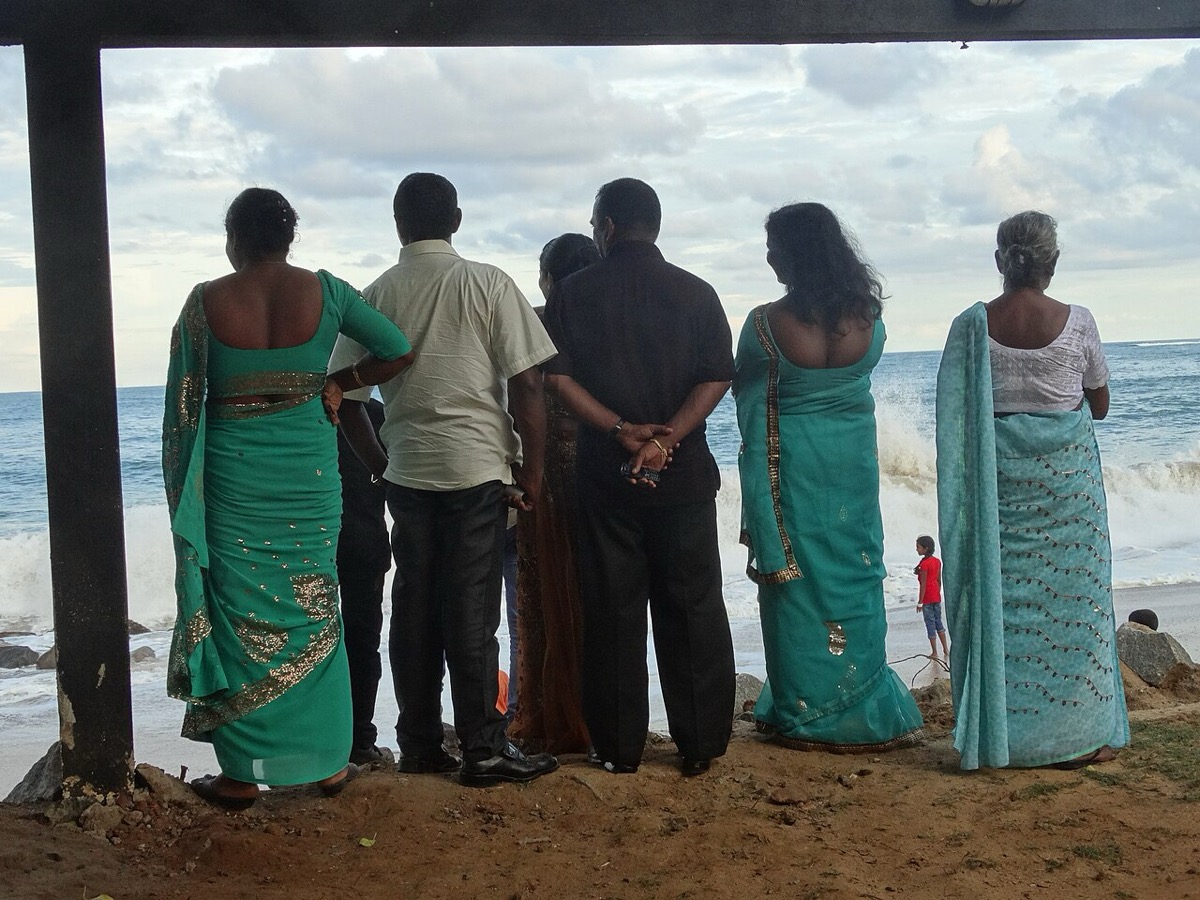
At a destination wedding, the guests who took the photos fly home to five countries the next morning. Their phones are on different networks, some have no data at the venue, and the group chat one family lives in is an app another family has never opened.
The plan has to be made before anyone gets on a plane. The basics are in how to collect wedding photos from your guests; this guide covers what changes when the guest list crosses borders.
Getting guests online at the venue
Every way of sharing photos needs a connection, and abroad, plenty of guests won't have one: some roam, some buy a travel eSIM, and some keep data off all weekend to avoid a bill.
- Tell guests about data before they travel. Apple lists the two usual routes: roam with your existing carrier, or buy a travel eSIM from a local carrier or a worldwide provider. To use another carrier's eSIM, the phone must not be locked to its home carrier, which guests can check before they leave.
- Ask the venue about Wi-Fi early. Find out whether it reaches the ceremony spot and the reception, not just the lobby, and whether it opens a sign-in page first. Ask your planner to test it there.
- Put the Wi-Fi on the photo sign. A guest who can't get online can't add a single photo, so the network and password belong right beside the photo instructions.
Choosing a place every guest can reach
The question isn't which app is best, but which one nobody gets stuck on. Three things to check:
Mixed phones
Expect both iPhone and Android. An iCloud Shared Album made on iOS 27 now lets Android guests add photos in a browser, and Google Photos runs on both. The details, limits and catches are in shared photo albums between iPhone and Android, and there is a setup walkthrough in a Google Photos shared album for a wedding.
Accounts guests may not have
A tool that asks for a Google or Apple account loses the guests who don't use one at home. Prefer a link that works in a browser, and send it the week before so anyone who must sign in does it at home.
Apps that don't work in every country
Some services simply don't reach some countries. Freedom House's 2024 report on China says Google search and a number of other Google services, along with WhatsApp and Instagram, are blocked in mainland China. If guests are coming from there, a Google Photos album or a WhatsApp group may work for them at the wedding and then stop when they get home, just when you're asking for photos. Ask a guest from each country to open your link and add a test photo before you send it to everyone.
Language on the sign and in messages
Keep the sign short enough to translate well, and ask a native speaker in each family to check the wording rather than trusting a translation app alone. The QR code and the Wi-Fi details need no translation, so make those the biggest things on it.
A sign you can copy, with one line per language:
Share your photos with us! Scan the code with your phone camera. No app needed.
Wi-Fi: [network] · Password: [password]
Do the same for the message you send before the day, with both languages in one message.
Large uploads over hotel Wi-Fi
Videos are where sharing stalls: a guest with the whole first dance on video, on a hotel network shared with every other guest, may watch the progress bar crawl and give up. A few settings make it worse:
- Low Power Mode on an iPhone pauses iCloud Photos, and Low Data Mode pauses iCloud Photos updates. Guests who switched these on to save battery or roaming data should turn them off while their photos upload.
- Google Photos on Android can back up over mobile data, with a daily limit and a separate switch for videos. Google says backup can take a while on a slow connection, and may not work well with battery optimisation on for the Photos app.
- Give uploads a whole night. Ask guests to add their photos on the last evening, on Wi-Fi with the phone plugged in, rather than at the airport gate.
- Ask for long videos separately. If the album isn't taking them, a file request afterwards works better; how to get photos from guests after the wedding has the options.
Time zones when sharing afterwards

Once everyone is home, a reminder sent at breakfast in Bali reaches London in the middle of the night and is buried by morning.
- Give a deadline with a time zone, like "by Sunday the 14th, 8 pm Lisbon time", or just a date with a generous margin.
- Schedule reminders to land in daytime. On an iPhone, Messages can schedule a text with Send Later, up to 14 days ahead, as long as you're using iMessage. Gmail's Schedule send sends by the time zone you schedule it in, so work out the guest's local time first.
- Split the list by region if guests are far apart: one reminder for Europe, one for Asia, one for the Americas.
Want to try it? SEENCAM gives your guests one QR code. They shoot from their own phones with no app to download, and every photo develops together when the roll opens. Free for up to 10 guests.
Get SEENCAM on the App StoreA plan you can copy
- Six weeks before: ask the venue about Wi-Fi, choose where photos will go, and test the link from an iPhone, an Android phone and a guest in each country you're unsure of.
- One week before: send the link with the Wi-Fi details and a line about data abroad, in your guests' languages.
- On the day: the sign, with the code and the Wi-Fi, on every table and at the bar. Ask the MC to mention it once.
- The last evening: a short message asking everyone to upload tonight, on Wi-Fi and plugged in.
- After: one scheduled reminder per region, a couple of days before your deadline.
- Flying with disposable cameras? Carry them on and ask for a hand check: here's whether disposable cameras can go through airport security.
A message you can copy for the week before:
We can't wait to see you! Our photo link is below, and it works on any phone. The venue Wi-Fi is [network], password [password], so you won't need data to share. Please add your photos before you fly home. [link]
How SEENCAM handles a guest list from everywhere
You start a roll in the iPhone app and share one QR code or link. Guests scan it and shoot straight into the roll from their own phones: on iPhone the camera opens as an App Clip, and on Android and other phones it opens in the browser. There's no app to download and no account to make, so a guest who has never used Google Photos or iCloud joins the same way as everyone else. They do need a connection to open the camera when they scan, so put the Wi-Fi on the same sign.
Because guests shoot into the roll rather than uploading from their camera roll later, nobody has to remember to share before their flight. You choose when the photos appear: during the event, when it ends, or 12 or 24 hours later, and the whole roll opens for everyone at once, wherever they are by then. You decide whether each guest sees every photo or only the ones they're in, and guests can take a selfie to find every photo they're in; the matching runs on the phone.
SEENCAM comes in 15 languages: English, Korean, Japanese, Chinese (Simplified), Thai, Indonesian, Spanish, French, German, Italian, Dutch, Swedish, Portuguese (Brazil), Norwegian and Russian. Every roll is free for up to 10 guests. Bigger rolls, up to unlimited guests, are a one-time purchase for that roll, and guests never pay.
A shared album still has a place, for photos from the welcome drinks or the excursion before the roll began.
Sources
- China: Freedom on the Net 2024, Freedom House
- Use eSIM while traveling internationally with your iPhone, Apple Support
- Use Low Data Mode on your iPhone and iPad, Apple Support
- Use Low Power Mode to save battery life on your iPhone or iPad, Apple Support
- Back up photos & videos, Google Photos Help
- Schedule text messages to send later, iPhone User Guide
- Schedule emails to send, Gmail Help
Related guides
One code for every guest, from anywhere
Start a roll on your iPhone and share one QR code. Guests on any phone shoot straight into it, with no app to download and no account. Free for up to 10 guests.
Get SEENCAM on the App Store