Private wedding photo sharing: who sees your guests' photos
Updated 16 November 2026
It depends on how the photos are shared. A public hashtag shows them to anyone, a shared album or Google Photos link to anyone who has the link, and a group chat to everyone in it. For a private wedding, pick one place guests can only join by invitation, and tell them plainly what you'd like kept offline.
Why it's worth deciding before the day
Your guests will take hundreds of photos: the two of you before the ceremony, your nieces asleep under a table, the uncle who never wants to be online. Where they end up depends less on your guests than on how you ask them to share, because each method has a different audience, and some can grow without anyone meaning it to.
This guide covers that one question. For everything else to weigh up, see what to look for in a wedding photo sharing app.
Who sees the photos, method by method

A public hashtag
A hashtag is public by design. On Instagram, a post from a public account can be seen by anyone on Instagram, in the feed and on the hashtag page, and links to it can turn up in search engines. Posts from private accounts never reach the hashtag page; only that guest's followers see them. There's more in do wedding hashtags still work.
An iCloud Shared Album
A shared album can be invitation-only: you invite people and approve them. On iOS 27 you can also share it by link, and choose whether anyone with the link can join or people must request access first. With anyone-with-the-link, everyone who has it can see and add photos, and pass it on. Apple says people can now join and contribute on the web, even without an Apple Account or Apple device. That's handy for friends on Android, but it also means a forwarded link works for strangers, so turn on access requests if the link will be printed or posted.
Albums made on iOS 26 or earlier have a different setting, Public Website, which puts the album on a web page anyone with the address can open in a browser. It's for looking, not adding. Either way, people in the album can save photos to their own library, and those copies stay even if you delete the album later. Here's how to make a shared album on iPhone.
Google Photos link sharing
Google says that when you share an album by link, anyone with the link can view the photos and add to the album, and the link can be shared on by others. If it leaks, you can turn link sharing off and on again, and the old link stops working. To keep people from adding, turn off Collaborate. One catch: removing a person takes their photos out, but while link sharing is on, anyone with the original link can still view the album.
A group chat
Everyone in the chat sees every photo, and anyone can save or forward it. That's fine for a family chat, as long as you're happy with everyone in it.
A dedicated photo sharing app
Apps differ, so ask three questions. Can people only get in with your invitation? Can you control which photos each guest sees? And if the app finds faces, does that happen on the phone or on a server?
| Who can see | Can it spread? | |
|---|---|---|
| Public hashtag | Anyone, for public accounts | Yes, it's public |
| iCloud album, invite only | People you approve | Only by saving and resharing |
| iCloud album, anyone with link | Anyone with the link | Yes, by forwarding |
| Google Photos link | Anyone with the link | Yes, until you reset it |
| Group chat | Everyone in the chat | By forwarding |
Keeping photos off public social media
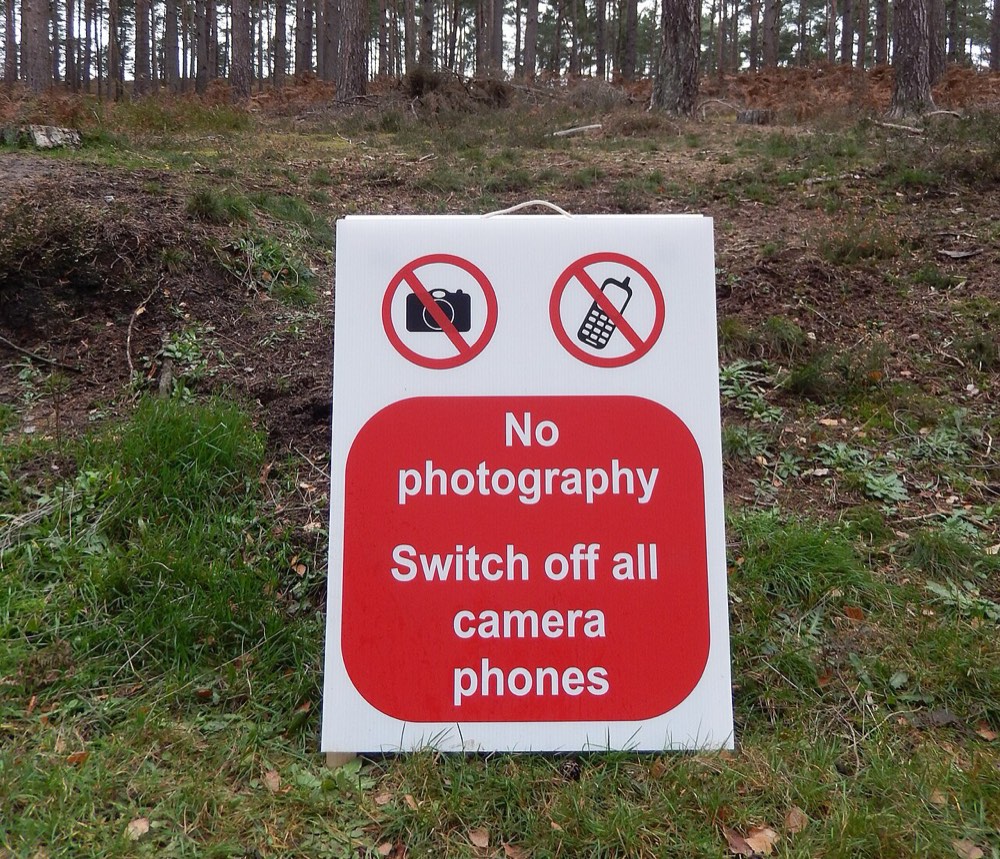
You can't stop a guest from posting, but most people will happily respect a clear, friendly request. What helps most:
- Ask early, in writing. A line on the invitation or the wedding website reaches guests before the day. Here's what guests can post before the couple does, with wording to copy.
- Repeat it on the day. A friendly sign at the entrance, and a word from the officiant once everyone is seated.
- Give them somewhere else to send photos. If posting is the only way to share, people will post. One private place makes it easy to say yes.
- Choose unplugged moments. Plenty of couples ask for phones away during the ceremony only, then welcome photos again at the reception. Here's how to plan an unplugged wedding ceremony.
Wording for the invitation or website:
We'd love your photos from the day! Please share them in our wedding album rather than on social media, so we can keep the day among the people who were there.
For the sign:
Took a great photo? Add it to our album. Please don't post photos of us, or of other guests' children, on social media. Thank you!
If you'd like to share first, say so: "Please hold off on posting until we've shared ours."
Photos of children
Some parents post everything, and others have firm reasons to keep their children offline. A few things keep it simple:
- Ask parents ahead of time how they feel about photos of their children being shared.
- Make "no children in public posts" the house rule, so nobody has to remember which family said what, and keep children out of your own posts too.
- Choose a method where guests don't all see everything, if your guest list is large. The fewer people who can browse every photo, the fewer copies leave the room.
Want to try it? SEENCAM gives your guests one QR code. They shoot from their own phones with no app to download, and every photo develops together when the roll opens. Free for up to 10 guests.
Get SEENCAM on the App StoreGuests who'd rather not be posted
Some guests stay offline because of their job, their family or their safety, and they shouldn't have to explain it. A general request on the sign covers them without singling anyone out. If a photo goes up anyway, ask the guest who posted it, kindly and in private, to take it down or crop the person out. Most people simply didn't think.
How SEENCAM keeps the roll private
With SEENCAM, you start a roll on your iPhone and share one QR code or link. Guests scan it and shoot straight into the roll from their own phones, with no app to download: it opens as an App Clip on iPhone and in the browser on other phones.
- Invite-only. Rolls are invite-only, and only the people in the roll see the photos. The QR code is the invitation, so put it on the tables and in your messages, not on a public post.
- You decide who sees what. The host chooses whether each guest sees every photo or only the photos they're in. At a big wedding with lots of children, the second option keeps every photo from passing in front of every guest.
- Hidden until the reveal. Photos stay hidden until the time you chose: during the event, when it ends, or 12 or 24 hours later. Before that, other guests see only a blurred preview.
- No account needed. Signing in is optional, so guests don't have to hand over an email address to join.
- Faces stay on the phone. A guest who wants to find the photos they're in can take a selfie. The matching runs on their phone, and faces are never uploaded.
Two honest limits. If you share the roll's album link, anyone with that link can view the revealed photos, so send it only to people you'd show them to. And guests can save the photos they can see, so your request about posting still matters. Anyone who wants a photo of themselves removed can ask at support@seencam.app.
Every roll is free for up to 10 guests. Bigger rolls are a one-time purchase for that roll, and guests never pay.
Sources
- Differences between public and private accounts on Instagram, Instagram Help Center
- Who can see your private Instagram posts when you add a hashtag, Instagram Help Center
- How to use Shared Albums in Photos on your iPhone, iPad, or Apple Vision Pro, Apple Support
- How to Share iPhone Albums with an iPhone or Android User, iPhone Life
- Share photos & videos, Google Photos Help
- How shared album controls give your photos more privacy, Google Photos Help
- How to Let Your Guests Know You're Having an Unplugged Wedding, WeddingWire
Related guides
Keep the photos among your guests
Start a roll on your iPhone and share one QR code. Rolls are invite-only, and you decide whether each guest sees every photo or only the ones they're in. Free for up to 10 guests.
Get SEENCAM on the App Store