How to make iPhone photos look like film
Updated 11 November 2026
Film looks softer than a phone photo: gentler highlights, warmer or muted colour, a little grain, and often a flash in the dark. You can get most of the way with the iPhone's own Camera and Photos apps. Here is how, and how to keep one film look across every photo from a party.
What makes a photo look like film
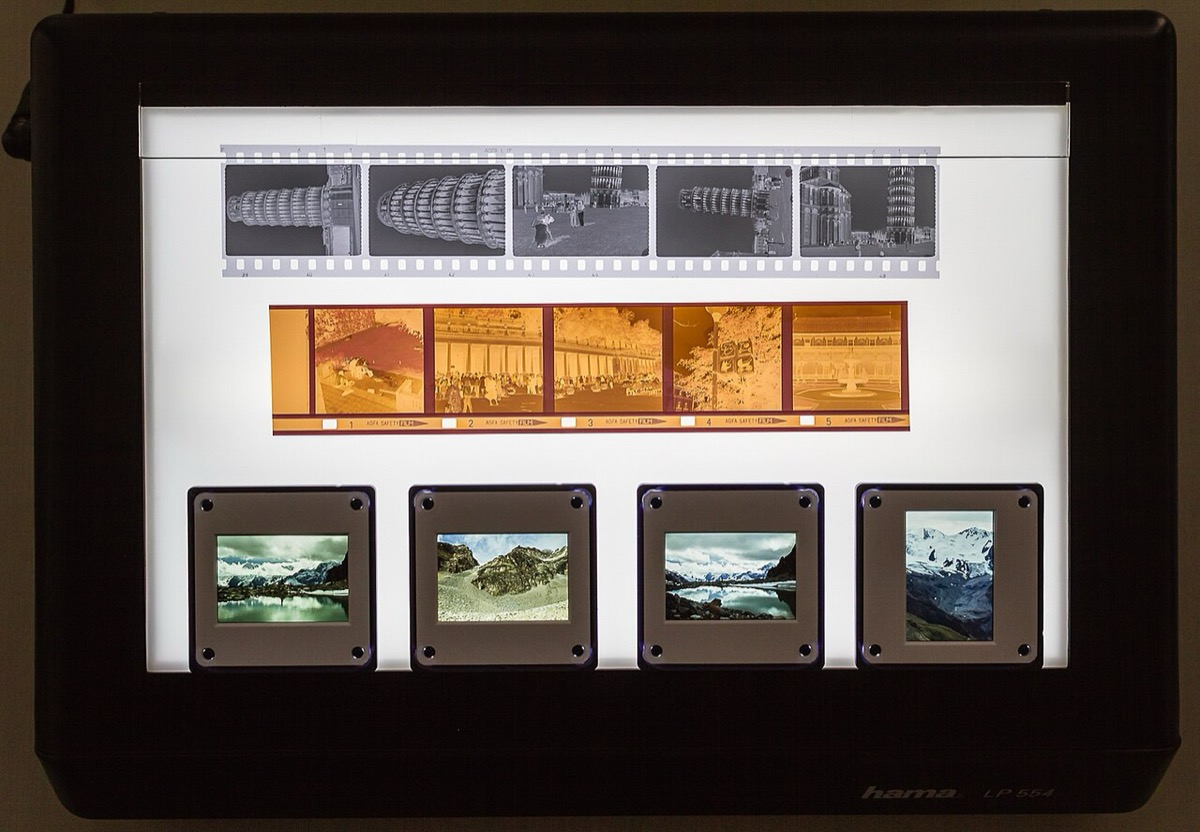
A modern iPhone works hard to make every photo bright, sharp and evenly lit. Film did none of that, and the things it got "wrong" are what people now miss:
- Grain. A fine, random texture from the film itself. How much you see depends on the film and how big the print is.
- Soft highlights. Bright skies and lamps fade gently to white instead of being pulled back into detail.
- Colour with a mood. Warm skin, creamy whites, slightly muted greens, or deep black and white.
- A little glow. Bright edges and lights can bloom with a soft halo, called halation.
- Less sharpness. Edges are softer than a phone's processed detail.
- Direct flash. The party-photo look of a disposable camera: bright faces, dark background.
You don't need all of these. Two or three, done lightly, read as film.
Start in the Camera app
The easiest film look is one you choose before you shoot, so every photo comes out the same way.
- iPhone 13 and later (and iPhone SE 3rd generation): Photographic Styles. In Camera, tap the arrow or swipe up from the camera modes, tap Styles and swipe through them. Pick a warm, soft style and lower the tone a little for gentler contrast. The style applies to every photo until you change it.
- iPhone 18 Pro, 18 Pro Max and iPhone Duo: texture and grain. In iOS 27, the same Styles menu has a Texture option. Choose Film and drag the slider, then tap Grain to add film grain. This is the closest the iPhone comes to film on its own.
- iPhone 12 and earlier: filters. Tap Filter in the same menu instead. The black-and-white filters give the simplest film feel.
One setting to check: to change a Photographic Style later in Photos, Camera has to save in High Efficiency. Go to Settings → Camera → Formats → High Efficiency. To go back to normal, choose Settings → Camera → Photographic Styles → Use Standard.
Shoot like a film camera
How you take the picture matters as much as the edit.
- Use the flash in dim rooms. Tap the Flash button and set it to On, and tap the Night mode button to turn it off if it comes on. You get the bright, a-bit-too-honest party look of a disposable instead of a smooth, brightened night photo.
- Stay on 1x. A disposable camera has one fixed lens. Step closer or further back instead of zooming.
- Take one and move on. Film made people choose. A single shot of a real moment looks more like film than the best of fifteen.
- Let it be imperfect. A tilted frame, someone mid-laugh, a lamp blowing out in the corner. Don't fix everything.
Shooting a sparkler send-off? Flash on and flash off give two very different pictures; here are sparkler exit photo tips for phones.
Give an existing photo a film look in Photos
For photos you've already taken, open one in Photos, tap the edit button, then tap Adjust. A starting recipe, to adjust by eye (slider names can vary slightly between iOS versions):
- Highlights down so bright areas soften.
- Contrast down a little for a gentler, flatter look.
- Black Point down a touch so the darkest parts look faded rather than inky.
- Warmth up slightly for warm skin and creamy whites.
- Sharpness and Definition down to take the digital edge off.
- A small Vignette to darken the corners, like an inexpensive lens.
On models with Photographic Styles you can also tap Styles in the editor and apply a style to a photo you've already taken. Photos taken on an iPhone 18 Pro or iPhone Duo can get the Film texture and grain afterwards too.
Doing a whole album? Edit one photo, tap the more button and choose Copy Edits, then select the rest and choose Paste Edits. Photos even nudges the exposure and white balance of each one so they match.
Dedicated editing apps go further, with presets modelled on particular film stocks, grain and dust. They're worth a look if you edit often. Try a few before paying for one.
Want to try it? SEENCAM gives your guests one QR code. They shoot from their own phones with no app to download, and every photo develops together when the roll opens. Free for up to 10 guests.
Get SEENCAM on the App StoreMistakes that give it away
- Too much grain. Dark phone photos already have noise, and heavy grain on top hides faces. Keep it subtle, especially at night.
- Too much fade. Lifting the blacks a lot turns a photo grey, not vintage.
- Over-processing first. Heavy HDR or Night mode brightening makes a film edit look like a filter on top of a phone photo.
- A different look on every photo. Film from one roll looks the same all the way through. Pick one look for an event and stick to it.
A film look for a whole party
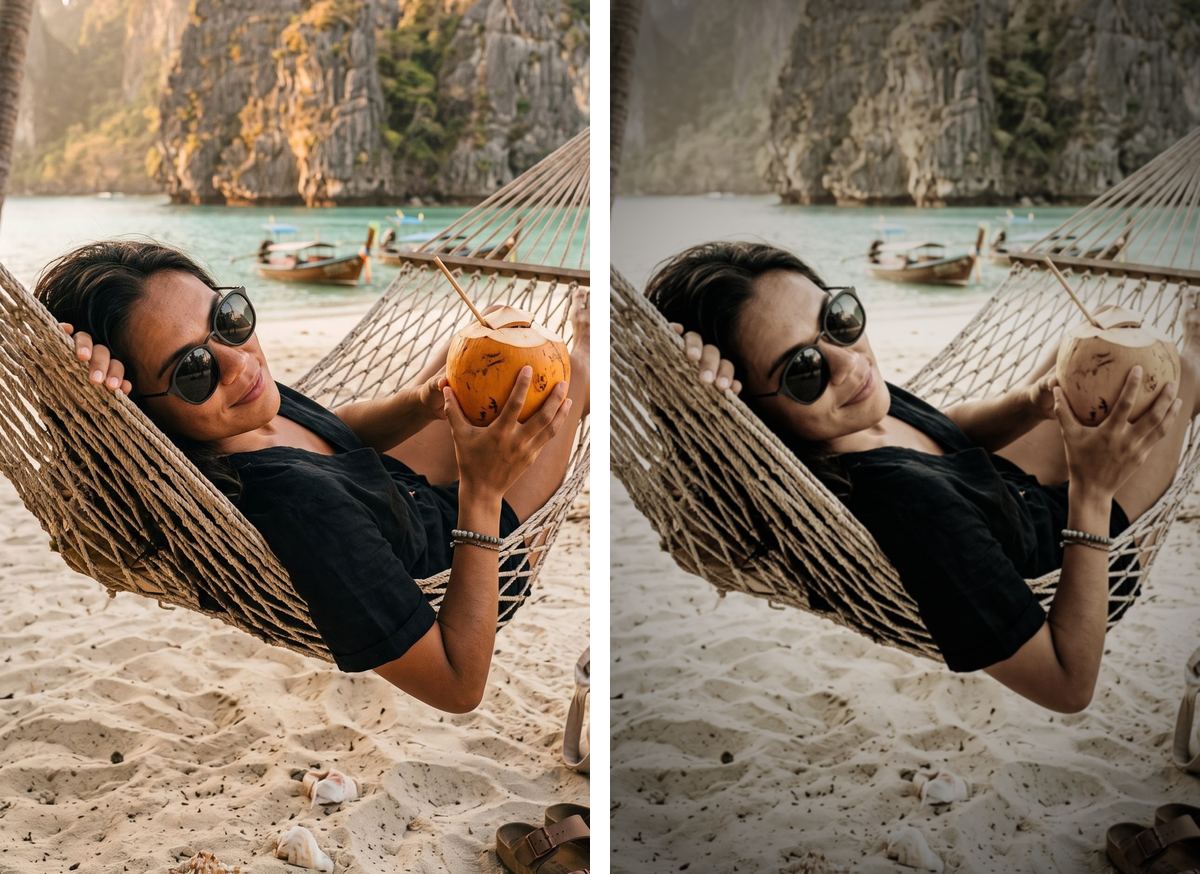
That last point is the hard one at a wedding or a party. You can set up your own phone, but every guest shoots their own way: some with a style, some with a filter, most with nothing at all. Then the photos end up in a hundred camera rolls anyway. Here's how to collect wedding photos from your guests, and why many couples put a real disposable camera on each table for the film look alone.
SEENCAM is a shared disposable camera that works on guests' own phones, and the film look is built in. Guests roll the wheel beside the shutter to pick one of eight film camera looks (STANDARD, LINEN, DUSK, CITRON BAY, FLASHBULB, DUSTY, MATCHBOOK and INKWELL) and see it live before they shoot. Holding the shutter records a 4-second clip in the same look.
Setting it up with SEENCAM
- Create a roll in the SEENCAM app on your iPhone and give it your event's name.
- Choose the rules: how many shots each guest gets, when shooting stops, and when the photos appear: during the event, when it ends, or 12 or 24 hours later. Like film, nobody sees the photos until then.
- Share one QR code or link. Here is wording and where to put the code.
- Guests shoot from their own phones with no app to download and no account: on iPhone the camera opens as an App Clip, and on any other phone it opens in the browser.
- The roll opens and everyone sees the whole night at once, already in film looks. Save your favourites or the whole roll.
Every roll is free for up to 10 guests. A bigger event is a one-time purchase for that roll, with no subscription, and guests never pay.
Sources
- Use Photographic Styles with your iPhone camera, Apple Support
- Edit photos and videos on iPhone, Apple Support
- Use iPhone camera tools to set up your shot, Apple Support
- Film grain, Wikipedia
Related guides
Film looks, on every guest's phone
Start a roll on your iPhone and share one QR code. Guests pick from eight film camera looks, and every photo develops together when the roll opens. Free for up to 10 guests.
Get SEENCAM on the App Store