How to find photos of yourself from a wedding or party
Updated 14 November 2026
Check the places photos were already shared, save them to your own library, and let your phone's face recognition sort out which ones you're in. Then ask the two or three people most likely to have you, because no search can see photos still sitting on someone else's phone.
Why the photos of you are on everyone else's phone
At a wedding or a party you're in plenty of photos, and almost none of them are on your phone. Whoever holds the camera is rarely in the shot, so the pictures of you are scattered: the couple's shared album, two group chats, a cousin's camera roll, the photographer's gallery.
Two things are worth knowing before you start looking:
- Face recognition on your phone only sorts photos in your own library. It can't reach a photo that's still on someone else's phone, however good it is.
- The copy you find may not be the full-quality one. Chat apps compress photos, so a picture that looks fine in the chat can print badly.
So the job has three parts: gather what was shared, let your phone pick out the photos you're in, and ask for what was never shared.
Start where photos were already shared
The couple's or host's shared album
Ask whether there is one. Many couples make an album and send the link after the day (here is how they usually go about it), and it's often the biggest single place to look.
- An iCloud shared album: in Photos on iOS 27, tap Collections, scroll down to Shared Albums and open it. To keep a photo, tap it, tap Share, then Save Image. Photos you save stay in your library even if the album is deleted later.
- A Google Photos shared album: open the link and save the photos you want. Google says saving a photo shared with you puts a copy in your library.
Saving matters for the next step. Face recognition works on your library, so the photos you save are the ones it can sort.
The group chats
Scroll back through every chat from the day: the guests' chat, the wedding party's chat, the family one. Save anything you're in. If you'd like to print a photo, ask the sender for the original, because chat apps shrink pictures. In WhatsApp, a photo sent as a document (Document, then Photo) avoids compression; the HD option still compresses.
The photographer's gallery
The professional photos arrive later, usually as an online gallery the couple shares. Some photographers' gallery services have a selfie search the photographer can switch on: you take a selfie, and the gallery shows the photos that match. If yours has one, use it.
Let your phone find your face
Once the photos are in your library, iPhone and Google Photos can both pick out the ones you're in.
On iPhone: People & Pets
- Open a photo of you in the Photos app and swipe up to see the details. Faces appear in the bottom-left corner, with a question mark next to anyone who isn't named yet.
- Tap your face, tap Edit Name and Photos, then Name This Person, and enter your name.
- Go to Collections → People & Pets and tap yourself. Photos names you in the other photos and videos in your library too.
The face analysis runs on the iPhone itself. If a photo has the wrong name, open it, tap the face and choose This is Not with the name.
On any phone: Google Photos face groups
- Turn on face groups: in Google Photos settings, find Group similar faces and turn on Face Groups.
- Find your own face in the people section and label it as Me.
- Search for me. In classic search, results can include photos from shared albums and conversations you haven't saved yet, marked with a small badge; save the ones you want to keep.
Face groups aren't available in every country or on every kind of account, so if you can't find the setting, that may be why.
What face recognition can't do
- See photos that never reached you. The friend with 200 dance-floor photos has them on their phone, not yours.
- Search someone else's library for you. Google says face groups and labels are private to each account and aren't shared when photos are shared. Your friend can only search for you on their own phone.
- Get it right every time. Google says its suggestions aren't always right, and Apple's Photos has a step for fixing wrong names. Look through the results rather than trusting them blindly.
- Fix quality. A compressed copy stays compressed; ask for the original of anything you'd print or frame.
Ask the people most likely to have you
A group message reaches everyone, but a personal one gets answered. The best bets:
- Whoever sat next to you, and your partner or plus-one.
- The friend with the good camera, who probably has dozens and is waiting to be asked.
- The people you danced with, or the table you spent the evening at.
- The couple or host, who see more of the guests' photos than anyone.
A tip that saves your friend an hour: ask them to name you once in their own Photos app. Their phone then gathers every photo of you in their library, ready to send in one go.
Copy and adjust:
Hi! I'm trying to find photos of me from Saturday. If you have any, could you add them to [album link] or send them as files so they keep their quality? Bad ones and blurry ones very welcome. Thank you!
Want to try it? SEENCAM gives your guests one QR code. They shoot from their own phones with no app to download, and every photo develops together when the roll opens. Free for up to 10 guests.
Get SEENCAM on the App StoreHow SEENCAM finds the photos you're in
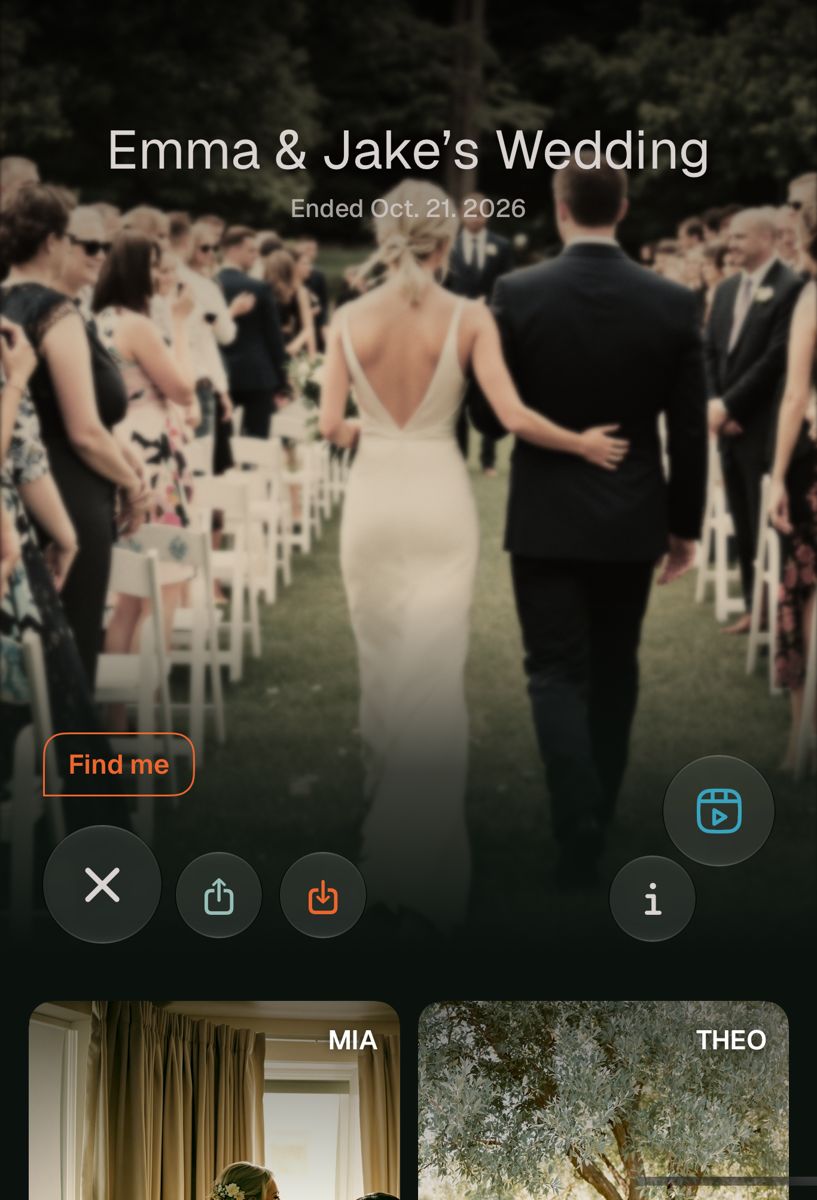
Everything above happens after the party, and only finds photos someone chose to share. SEENCAM works the other way round. The host starts a roll in the iPhone app and shares one QR code or link. Guests scan it and shoot straight into the roll from their own phones, with no app to download and no account: the camera opens as an App Clip on iPhone and in the browser on any other phone. Every photo lands in the same roll as it's taken, so nothing is left on someone's phone waiting to be sent.
- One selfie when you join. Take it and SEENCAM finds every photo you're in, even ones other people took.
- Your face stays on your phone. The matching runs on the phone, and faces are never uploaded.
- The host decides who sees what. Each guest sees either every photo or only the photos they're in. Rolls are invite-only.
- Photos appear together at the time the host chose: during the event, when it ends, or 12 or 24 hours later. Save your favourites or the whole roll.
It can't search a party that's already over, since guests shoot into the roll rather than upload from their camera roll. For a past wedding, use the steps above.
If you're hosting the next one
You can spare your guests all of this. Decide before the day where photos go, and tell people when they arrive; here is how to collect photos from your guests. If you use a shared album, make it beforehand; here is how to make a shared album on iPhone. With SEENCAM, every roll is free for up to 10 guests; bigger rolls are a one-time purchase by the host, and guests never pay.
Sources
- Find and name people and pets in Photos on iPhone, Apple Support
- Photos & Privacy, Apple
- How to use Shared Albums in Photos on your iPhone, iPad, or Apple Vision Pro, Apple Support
- Set up & manage your face groups, Google Photos Help
- Search by people, things & places in your photos, Google Photos Help
- Share photos & videos, Google Photos Help
- WhatsApp Now Lets You Send Photos and Video in Original Quality, MacRumors
- How can gallery guests view or search the gallery using face scan?, Pic-Time Help
Related guides
Everyone finds their own photos
Start a roll on your iPhone and share one QR code. Guests take a selfie when they join and find every photo they're in. Free for up to 10 guests.
Get SEENCAM on the App Store